Best AI Voice Generator for YouTube Videos Free and Easy
Discover the best AI voice generator for YouTube videos. A beginner friendly tutorial to create free, professional voiceovers fast.
Introduction
YouTube has exploded with content over the past few years, and one thing has become crystal clear: viewers expect quality audio. Whether you're creating tutorials, product reviews, or faceless channels about true crime or finance, a solid voiceover can make or break your video's success.
But here's the thing. Not everyone feels comfortable recording their own voice. Maybe you're shy, perhaps your accent makes you self conscious, or you simply don't have a decent microphone. These barriers stop countless creators from ever hitting publish.
That's where AI voiceovers for YouTube come in, and they've genuinely changed the game. The technology has improved dramatically, producing natural sounding speech that your audience won't immediately clock as artificial.
In this guide, we'll explore the best AI voice generator for YouTube options available right now, with a focus on tools that won't cost you a penny to get started. You'll discover which free AI voice generators actually deliver quality results, plus we'll walk you through exactly how to create and add voiceovers to your videos.
Let's dive into what makes a great AI voice tool for content creators.
What to Look for in an AI Voice Generator for YouTube
Choosing the right AI voice generator for YouTube comes down to a handful of practical factors that will directly impact your content quality and workflow.
First and foremost, you need a natural sounding AI voice that actually holds attention. Nothing sends viewers clicking away faster than robotic, monotone narration. The technology has improved dramatically, but quality still varies wildly between platforms. Listen carefully to sample clips before committing to any tool.
Ease of use matters enormously, especially if you are new to content creation. The best AI text to speech for YouTube tools let you paste your script, select a voice, and export your audio within minutes. If you are spending hours figuring out settings, that is time you could spend on editing or planning your next video.
Check the free tier carefully. Most platforms offer limited monthly characters or minutes at no cost, which might be plenty for shorter videos but could leave you stuck mid project if you are creating longer content.
Your chosen tool should export in common formats like MP3 or WAV that work seamlessly with editing software such as DaVinci Resolve, Premiere Pro, or CapCut. Compatibility headaches are the last thing you need.
Finally, consider language and accent options. A broader selection helps you connect with international audiences or match specific content themes.
With these criteria in mind, let us explore the top free options available right now.
Top Free AI Voice Generators for YouTube in 2024
Finding the best AI voice generator for YouTube can feel overwhelming with so many options available, but several standout tools offer impressive features without costing a penny.
ElevenLabs Free
ElevenLabs has quickly become the gold standard for AI voice quality. The free tier gives you 10,000 characters per month, which translates to roughly 10 minutes of audio. What makes ElevenLabs free so appealing is the remarkably natural sound of its voices. They capture subtle inflections and emotional nuances that many competitors simply cannot match, making your YouTube content sound genuinely professional.
Murf AI Free
If you are new to AI voiceovers, Murf AI free offers one of the most welcoming experiences around. The interface is clean and intuitive, letting you generate voiceovers without any learning curve. You get 10 minutes of voice generation monthly on the free plan, along with access to over 120 voices. It is particularly good for creators who want to experiment before committing to a paid solution.
Google Text to Speech for YouTube
For creators on a tight budget, Google text to speech YouTube workflows offer a completely free option. While the voices sound more robotic than premium alternatives, recent updates have improved naturalness significantly. It integrates seamlessly with various video editing tools and works reliably across different languages.
Microsoft Azure Neural TTS
Microsoft provides 500,000 characters free each month through Azure Neural TTS. The neural voices sound impressively human, and the platform supports over 140 voices across 70 languages. Setup requires a bit more technical knowledge, but the generous allowance makes it worthwhile for high volume creators.
Canva Text to Speech
For creators already designing thumbnails and graphics in Canva, the built in TTS feature adds convenience. While not the most sophisticated option among free TTS tools, it streamlines your workflow by keeping audio and visual creation in one place.
With these options in mind, let us walk through exactly how to create your first AI voiceover.
Step by Step Tutorial Using ElevenLabs for YouTube Voiceovers
Getting started with ElevenLabs is genuinely simple, even if you have never used a free AI voice generator for YouTube before. Let me walk you through the exact steps to create YouTube voiceover audio that sounds professional.
First, head to the ElevenLabs website and click the sign up button in the top right corner. You can register using your email address or sign in with a Google account for quicker access. The free tier gives you 10,000 characters per month, which translates to roughly 10 minutes of audio depending on your speaking pace.
Once you are logged in, you will land on the Speech Synthesis page. This is where the magic happens. Copy your YouTube script and paste it directly into the large text box. Before generating anything, take a moment to choose your voice from the dropdown menu on the right. ElevenLabs offers several preset voices, and I recommend listening to the samples before committing. For YouTube content, voices like Rachel or Adam work brilliantly because they sound natural and engaging.
Now for the settings that make a real difference. Below the voice selector, you will find two sliders: Stability and Clarity plus Similarity Enhancement. For text to speech YouTube video projects, I suggest setting Stability around 50 to 70 percent. Lower stability creates more expressive, dynamic speech, while higher values produce consistent but potentially flatter delivery. Clarity should typically sit between 75 and 100 percent for the crispest audio quality.
Click generate and wait a few seconds for your audio to process. Once ready, hit the download button to save your file. ElevenLabs exports in MP3 format by default, which works perfectly for most video editing software.
Here is my top tip for this ElevenLabs tutorial: break longer scripts into smaller chunks. This helps you stay within the free tier limit and gives you more control over pacing. Generate each section separately, then combine them in your video editor. You can also preview sections before downloading to avoid wasting characters on audio you are not happy with.
With your voiceover file saved, you are ready to bring everything together in your video editing software.
How to Add Your AI Voiceover to a YouTube Video
Once you have your AI voice for YouTube ready, the next step is bringing it all together in a video editor. The good news is that you do not need expensive software to create something that looks and sounds professional.
For YouTube video editing beginner workflows, I recommend starting with either CapCut or DaVinci Resolve. Both are completely free and handle everything you need. CapCut is particularly intuitive if you have never edited before, while DaVinci Resolve offers more advanced features as your skills grow.
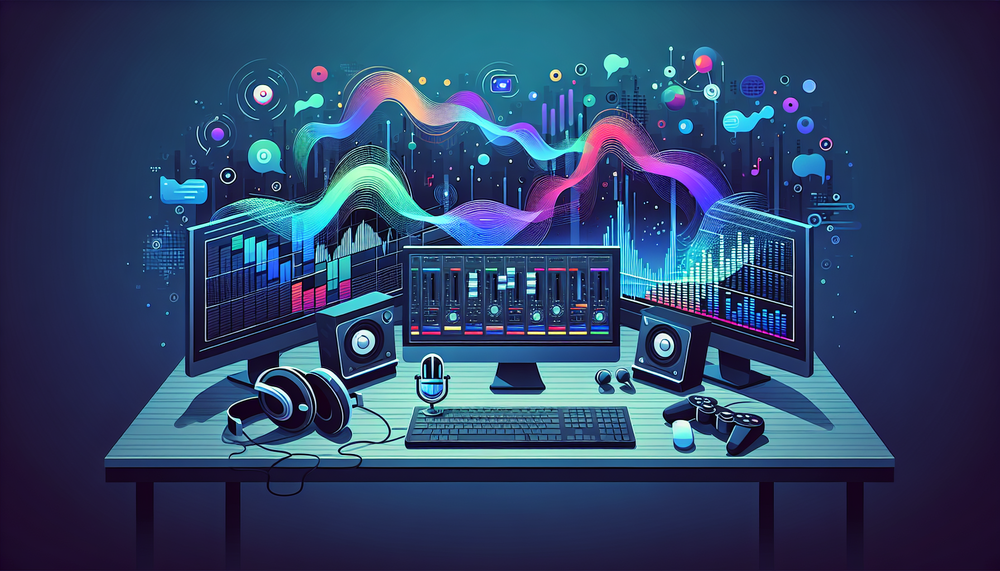
To add AI voiceover to YouTube video projects, start by creating a new project and importing your video footage or presentation slides onto the timeline. Then drag your AI audio file onto a separate audio track below. Most editors display audio as a waveform, making it easy to see where words begin and end.
To sync voiceover with video effectively, play through your timeline and adjust when each clip appears so it matches what the voice is describing. You can cut, trim, and shuffle your visual content to fit the natural rhythm of the narration. Take your time here because good timing makes a massive difference to how polished your video feels.
If you are using background music, keep it significantly quieter than your voiceover. A good rule is setting music at around 15 to 20 percent volume while your voice stays at 100 percent. This ensures viewers can hear every word clearly.
When exporting, choose H.264 format at 1080p resolution with a frame rate of 24 or 30 fps. These are YouTube's recommended settings and will give you the best balance of quality and file size.
With your video exported, there are a few techniques that can make your AI voiceover sound even more authentic.
Tips to Make Your AI Voiceover Sound More Natural
Even the best AI voice for YouTube videos can fall flat if your script reads like a textbook. The secret to a natural sounding AI voice starts with how you write.
Keep sentences short and punchy. Long, winding sentences confuse text to speech engines and sound unnatural when spoken aloud. Break them up before you hit generate.
Punctuation is your best friend here. Commas create brief pauses. Full stops add weight. Ellipses can build tension or give listeners a moment to breathe. Experiment with these to improve AI voiceover quality dramatically.
Choose a voice that fits your channel's personality. A gaming channel might suit an energetic, younger voice, while a meditation channel needs something calmer. Most tools let you preview options, so take time to find the right match.
Once your voiceover is ready, add subtle background music. This fills any slight robotic gaps and makes the audio feel more polished and professional.
Finally, write like you talk. Read your script aloud before generating. Does it sound like something you would actually say? If not, rewrite it. These text to speech tips transform decent voiceovers into genuinely engaging content.
With your audio sounding great, let's wrap up everything you need to get started.
Conclusion
Finding the best AI voice generator for YouTube doesn't have to be complicated or expensive. As we've explored, tools like ElevenLabs, Murf AI, and Microsoft Azure Neural TTS offer excellent free tiers that produce natural sounding voiceovers without any recording equipment or prior experience.
The barrier to creating professional YouTube content has never been lower. With a free AI voiceover for YouTube, you can focus on what matters most: your ideas and your audience.
Ready to get started with AI voice? Sign up for ElevenLabs' free tier today and create your first voiceover in minutes. For more guidance, check out our beginner's guide to text to speech software and our comparison of the top AI voice platforms on TTS Insider.
Author

Adam is the founder of TTS Insider and a life long geek since his early days as a COBOL programmer in the 1980's. His aim is to produce a truly useful, free resource for anyone interested in Text to Speech technologies.
Sign up for TTS Insider newsletters.
Stay up to date with curated collection of our top stories.